
TL;DR: No — not reliably. Unlike Signal, iMessage is not built to scrub your photos. When you send an image through Messages on iOS, the attachment usually reaches your recipient with its EXIF block intact: the camera Make and Model, the DateTimeOriginal timestamp, and frequently the GPS IFD holding your latitude and longitude. Apple's compression resizes the file but makes no promise to remove metadata, and forensic examiners routinely recover EXIF — GPS included — from iMessage attachments. iMessage's end-to-end encryption protects the file in transit; it does nothing to the data written inside it. iOS does offer a per-share Location toggle that drops GPS, but it is off by default and leaves the other fields in place. The dependable fix is to strip the file yourself before Messages ever sees it.
Does iMessage remove photo metadata?
Not in the way most people assume. It is easy to expect that Apple, with its privacy branding, quietly cleans your photos on the way out — but iMessage is not designed to, and in practice it usually does not. When you attach a photo in Messages and send it, the copy that lands in your recipient's thread typically still carries the EXIF metadata your camera wrote: the make and model of the device, the exact capture time, the exposure settings, and — the field that actually matters for your safety — the GPS coordinates of where the shot was taken.
This puts iMessage on the opposite end of the spectrum from Signal, which strips EXIF from photos by default. Signal re-encodes an image from its pixels and drops the metadata block as part of sending; iMessage generally forwards the file with that block in place. Digital forensics practitioners have long treated iMessage attachments as a reliable source of EXIF data precisely because the metadata tends to survive the trip. If the field names above are unfamiliar, our primer on what EXIF data actually is walks through everything a phone embeds in a frame before you ever hit send.
What actually happens when you send a photo on iMessage
Modern iPhones capture in HEIC, Apple's flavor of the HEIF container, and store the same metadata a JPEG would — just in the container's metadata boxes rather than a JPEG APP1 segment. When you send that image through Messages, iOS may transcode it to JPEG for compatibility or compress it to save bandwidth, and by default it sends a resized copy rather than the full-resolution original. The important detail is that none of these steps is a metadata-removal step. Resizing changes the pixel dimensions; transcoding changes the container. Neither guarantees the EXIF or the GPS IFD is dropped, and in real-world testing the location data frequently rides along into the smaller file. We cover how the two formats carry this data differently in HEIC vs JPEG metadata.
There is also a setting people mistake for a privacy control. Under Settings → Messages, "Low Quality Image Mode" reduces the resolution and file size of images you send. It exists to save cellular data, not to protect you — a smaller image is still an image with a metadata block, and turning the mode on does not promise to erase your coordinates. Treating a compression toggle as a location shield is the same error people make elsewhere, and it leaves the exact fields intact that we catalog in what metadata your iPhone hides in every photo.
The GPS problem: your coordinates ride along
Of everything in the EXIF block, the GPS IFD is the field that turns a harmless snapshot into a map pin. It stores GPSLatitude and GPSLongitude as precise decimal coordinates, often accurate to within a few meters, plus GPSAltitude and a timestamp. A photo taken in your kitchen and sent to a group chat can carry the coordinates of your home, and because iMessage tends to preserve that block, anyone who saves the image from the thread can read the location straight out of the file. No hacking required — the Photos app on any phone will show it on a map, and a desktop image viewer lists it in plain text.
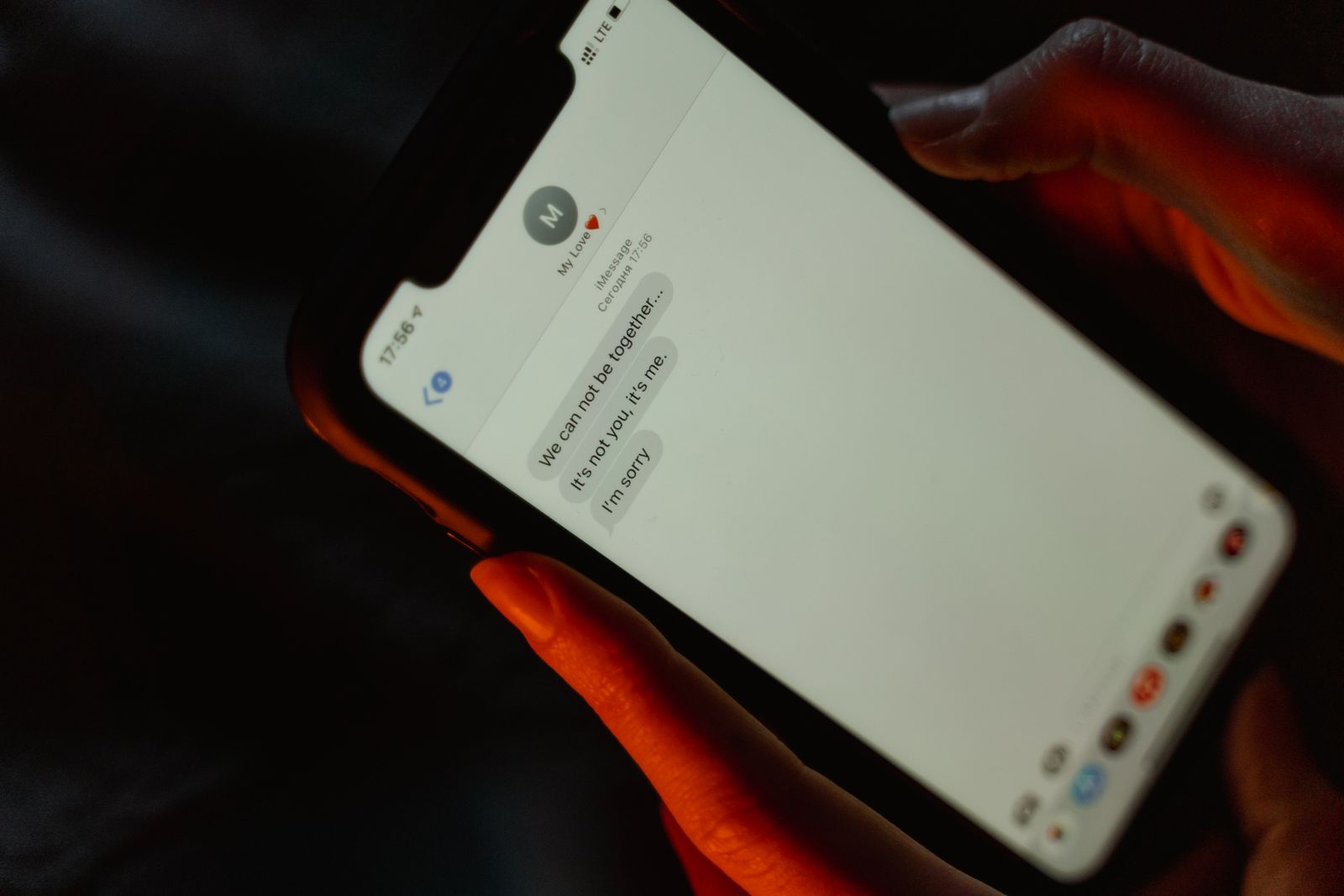 Photo by MART PRODUCTION on Pexels.
The reason GPS is the field to watch is that it survives more handling than any other. Even when a platform re-encodes an image, coordinates written into the file can persist through resizing and format changes, and iMessage does less to the file than most. We break down exactly how those numbers get into a photo in the first place — and why they are so hard to shake — in how GPS coordinates get embedded in photos.
iMessage compared with Signal, WhatsApp and Telegram
It helps to place iMessage on the map of how messengers treat metadata, because they do not behave the same. Signal sits at the strict end: it strips EXIF on the standard photo path and keeps no original on a server. Instagram and other upload-based platforms re-encode images on ingest, which incidentally drops most metadata even though privacy is not the goal. WhatsApp re-compresses photos and removes much of the EXIF on its default "photo" path while preserving it in document mode. Telegram strips only on its compressed photo path and keeps everything when you send as a file.
iMessage lands on the preserving side of that spectrum. It is not trying to redistribute your photo to a public feed, so it has never had a reason to build the aggressive server-side re-encoding that strips metadata as a side effect. The result is a system that treats your image more like a file to deliver faithfully than a post to sanitize — which is convenient for image quality and inconvenient for anyone assuming their location was scrubbed. The lesson across all of these apps is the same: the stripping behavior, where it exists, is a byproduct of how the platform moves files, not a privacy guarantee you can lean on.
What about videos?
Everything above concerns still images, and video is if anything more exposed. A clip carries its own metadata — the recording timestamp, the device make and model, and GPS coordinates baked in by your camera app if location services were on when you filmed. iMessage compresses video for delivery much as it does photos, and just as with photos, compression is not a metadata-removal guarantee. A phone video can be more revealing than a still because it records the same location across a stretch of time and motion. We detail exactly what a phone writes into a clip in what metadata iPhones add to videos.
 Photo by Evan Mahmud Shuvo on Pexels.
Encryption is not the same as metadata removal
iMessage is famous for its end-to-end encryption, and it is worth being precise about what that protects. Encryption scrambles the file while it moves so that not even Apple can read what you sent. It does nothing to the metadata inside the file. Send a photo through an encrypted iMessage thread and your recipient decrypts it, opens it, and finds the EXIF block sitting right there — GPS and all — because encryption secured the envelope and left the letter untouched. The coordinates were written by your camera long before Messages touched the file, and end-to-end encryption faithfully delivers them to the other end.
This matters doubly on Messages because the app mixes two transports. A blue bubble is iMessage, end-to-end encrypted; a green bubble is SMS or MMS, which is not encrypted at all. But the metadata question is identical for both: neither the encrypted path nor the unencrypted one is designed to remove what is embedded in the file. As the EFF's work on privacy keeps pointing out, metadata is a whole category — location, timestamps, device identifiers, software fingerprints — and securing the transport layer leaves that entire category in place. A locked envelope does not blank the letter inside it.
The one setting that helps — and its limits
iOS does give you a real, if easily missed, control. When you share a photo from the Photos app, the share sheet shows an "Options" link at the very top; tap it and you can switch "Location" off before you send. Do that and the shared copy goes out without its GPS coordinates. Apple's own Messages guidance describes the sharing flow, and this toggle is the closest thing to a built-in metadata control that Messages offers.
But be clear about its edges. The toggle is off by default on every single share, so it protects you only on the occasions you remember to flip it. It removes the location specifically — the capture timestamp and device fields can remain. And it lives one menu deep in a screen most people swipe past. It is a genuine backstop, and worth knowing, but it is not a setting you can configure once and forget. If you want the location gone every time without depending on your own memory, the reliable approach is to clean the file up front, which is also the theme of our guide on sending photos without location data.
What stripping still doesn't hide
Two limits are worth stating plainly even once your metadata is gone. The first is that removal is per-file and per-copy. Clean the version you send through Messages and the original still sits in your camera roll with its GPS intact; email that original, or back it up somewhere, and the clean copy does nothing for those other versions. Stripping is not a property that follows a photo around once it exists in more than one place — a distinction we pull apart in what metadata scrubbing actually removes.
The second is that metadata is not the only thing a photo reveals. An image with no GPS tag can still show a street sign, a house number, a reflection in a window, or a recognizable skyline that places it just as precisely as any coordinate. Removing the GPS IFD while a device serial number and the capture time survive is not anonymity either. The honest framing is that clearing metadata closes the hidden, machine-readable leak — the one you cannot see and would never think to check — while the visible content of the frame is a separate discipline entirely.
How to remove photo metadata before sending on iMessage
Because iMessage will not do it for you, the dependable fix is to clean the file on your own machine before Messages ever sees it. Metadata Cleaner does this in the browser: drop in a photo or a video, and it rewrites the file without its EXIF block, GPS IFD, XMP and IPTC records and embedded thumbnail, then hands you back a clean copy. Because it handles video and audio as well as images, it closes the same gaps whether you are sending a still, a clip, or a voice memo. The processing happens locally and the file is never uploaded to us.
Once you have the stripped copy, send that instead of the original, and it stops mattering whether iMessage compresses the image, transcodes it, or forwards it full size — there is nothing left to expose either way. If you want the longer, platform-by-platform walkthrough, our guide on how to strip EXIF data from a photo covers the steps across desktop and phone. The reliable move, on iMessage as anywhere, is never to depend on the app to do this for you.
iMessage is a good messenger and a genuinely private one where transport is concerned — but transport privacy is not the same as file privacy, and the app that encrypts your conversation makes no promise to scrub the photo inside it. The coordinates in that beach snapshot reach your recipient exactly as your camera wrote them unless you remove them first. Strip the file yourself and the question stops mattering. Try Metadata Cleaner free and send the clean copy.