
TL;DR: GPS coordinates are written into a photo as a dedicated block of EXIF metadata called the GPS Info IFD, pointed to by tag 0x8825 in the file's main directory. When location services are on, your phone reads its position from satellite systems (GPS, GLONASS, Galileo) and stores latitude and longitude as rational numbers in degrees, minutes, and seconds, plus reference tags (N/S, E/W) that fix the hemisphere. It commonly adds altitude, a UTC timestamp, and compass heading. These values use the WGS-84 datum and are typically accurate to a few meters. The block travels inside the file—JPEG or HEIC—wherever you send it, unless a platform or tool removes it. Stripping every EXIF tag deletes the GPS Info IFD entirely, which is the only reliable way to be sure a shared photo no longer carries where you stood.
Open a photo you took outdoors last week, and there is a fair chance it knows the exact spot you were standing—latitude and longitude down to a few meters, often with the altitude and the direction your camera was pointing. None of that is visible when you look at the image. It lives in a hidden block of data the file carries with it, written automatically the moment you press the shutter with location turned on. This guide explains how those coordinates get into a photo, where they sit, why they matter, and how to remove them for good.
How Does Your Phone Know Where a Photo Was Taken?
Every modern smartphone contains a satellite-positioning receiver. Despite being called "GPS" in casual speech, the chip usually listens to several constellations at once—the American GPS system, Russia's GLONASS, Europe's Galileo, and others—and combines their signals to estimate your position. Phones speed this up with assisted GPS, which uses cell-tower and Wi-Fi data to get a rough fix in seconds rather than waiting for a cold satellite lock.
When you open the camera app, and if you have granted it location permission, the phone hands the camera the current coordinates from this positioning system. At the instant the photo is captured, the operating system bundles those coordinates into the image file alongside the picture itself. You never see a prompt, because you already approved location access when you first set up the app. The geotag is a silent, automatic byproduct of taking the shot.
This is why a photo can later be plotted on a map without you ever typing in an address. The map feature in your gallery is simply reading coordinates the camera saved at capture time. The same mechanism that powers "On This Day" location albums is the one that can reveal your home to a stranger.
Where GPS Coordinates Live Inside the File
EXIF—Exchangeable Image File Format—is the metadata standard that cameras and phones use to record information about a photo inside the photo's own file. EXIF organizes its data into image file directories, or IFDs. Location data does not sit in the main directory; instead, the main directory holds a single pointer tag, the GPS Info IFD Pointer (hexadecimal 0x8825), whose value is the byte offset to a separate sub-directory dedicated entirely to positioning. That sub-directory is the GPS Info IFD, and it is where every coordinate lives.
Separating GPS into its own sub-IFD is a deliberate design choice. It keeps positioning fields logically grouped and makes them easy for software to read or skip. It also means that when a cleaner removes the GPS Info IFD, it strips location data as a unit—latitude, longitude, altitude, and timestamp all leave together. We covered the broader structure of these directories in our explainer on what EXIF data is, and the same IFD machinery underlies the location tags here.
One point worth stressing: this applies to HEIC, the format iPhones use by default, just as much as to JPEG. HEIC wraps EXIF in a slightly different container, but the GPS Info IFD is present and behaves identically. Switching your phone to HEIC does nothing to protect your location. For a deeper look at everything an iPhone records, see our breakdown of the metadata your iPhone secretly embeds.
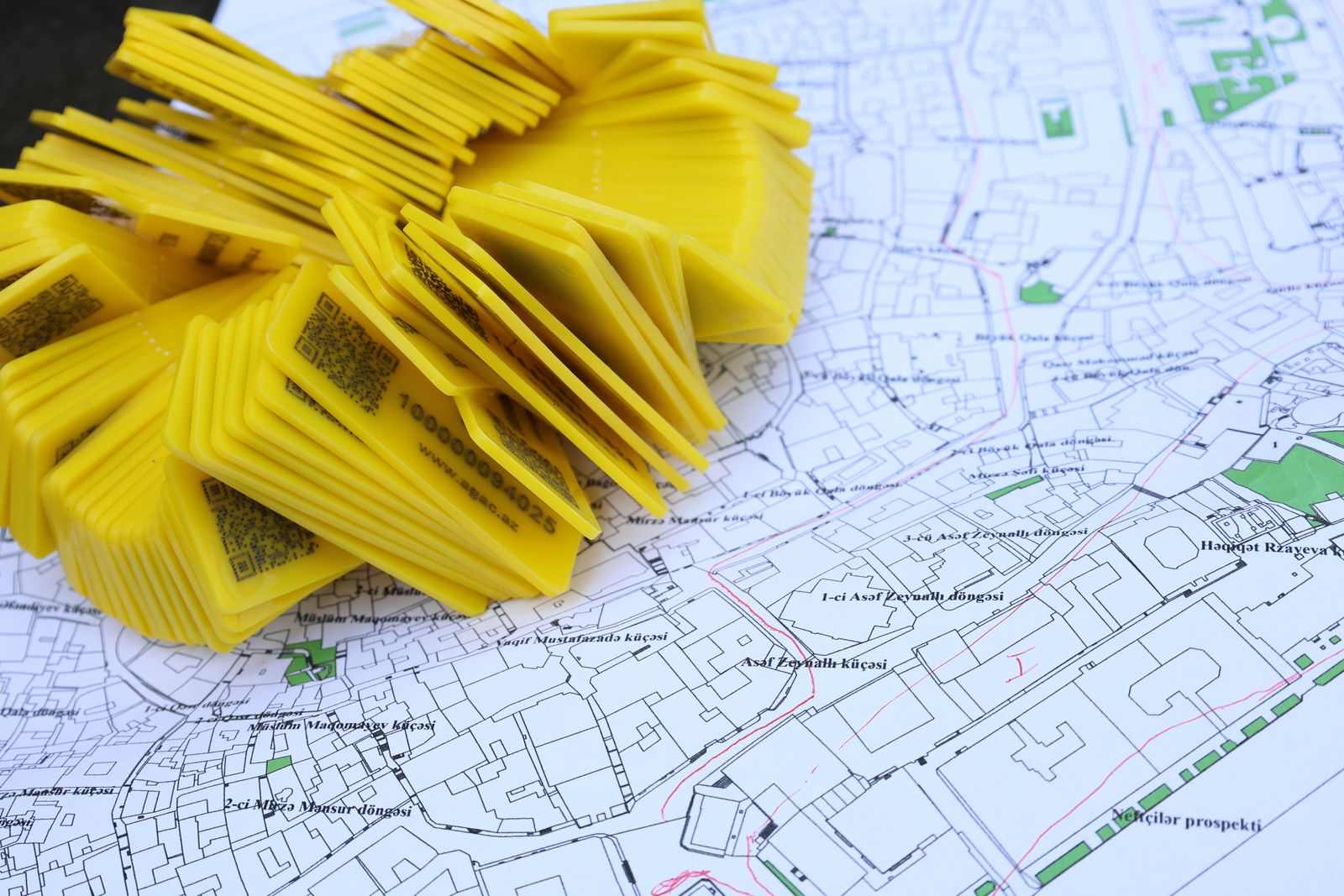 Photo by Tahir Xəlfə on Pexels
What the GPS Tags Actually Record
The GPS Info IFD can hold more than thirty distinct fields, but a handful do the real work, and seeing them by name makes the abstraction concrete.
Latitude and longitude are stored in the tags GPSLatitude and GPSLongitude, each as three rational numbers representing degrees, minutes, and seconds. Because those numbers are always positive, two companion tags—GPSLatitudeRef and GPSLongitudeRef—record a single letter each (N or S, E or W) to fix which hemisphere you are in. Without the reference tags, a coordinate is ambiguous; with them, it points to exactly one place on Earth.
Most phones add GPSAltitude with a GPSAltitudeRef byte indicating above or below sea level, a GPSTimeStamp and GPSDateStamp recorded in UTC (useful for proving when a shot was taken, independent of the camera's local clock), and a GPSImgDirection giving the compass heading the lens was facing. A GPSVersionID notes which version of the GPS tag spec produced the data. Some devices include GPSHPositioningError, an estimate of accuracy in meters, and GPSProcessingMethod, which states whether the fix came from satellites, cell towers, or Wi-Fi.
All of these coordinates are expressed against the WGS-84 datum—the same global reference frame the positioning satellites use—so any mapping tool can plot them without conversion. In practice, that means a copied-and-pasted latitude/longitude pair from a photo drops a pin within a few meters of where you stood.
Why Embedded Coordinates Are a Real Privacy Risk
The danger is not that coordinates exist; it is that they travel silently. You take a photo inside your home to sell something online, post it to a forum, or send it to someone you just met, and the GPS Info IFD rides along inside the file. Anyone who can download the original can open it in a viewer and read your front door's coordinates in seconds—no hacking required, just a willingness to look.
This has played out in documented cases for years. People have been located through photos posted to marketplaces, classified ads, and social comments. Individuals trying to stay hidden from an abuser or stalker have been found because a single image leaked a location. Investigators and open-source researchers treat photo geotags as a primary lead, a practice we examined in our piece on how police can track you through photo metadata. The Electronic Frontier Foundation has long flagged geotagged images as one of the most underestimated everyday privacy exposures, precisely because the data is invisible and the sharing is routine.
What makes it worse is the pattern, not just the single point. A batch of photos with timestamps and coordinates can sketch a daily routine: home, gym, workplace, the school you drop kids at. Geotagging, as the practice is broadly defined, turns a casual photo stream into a map of a life.
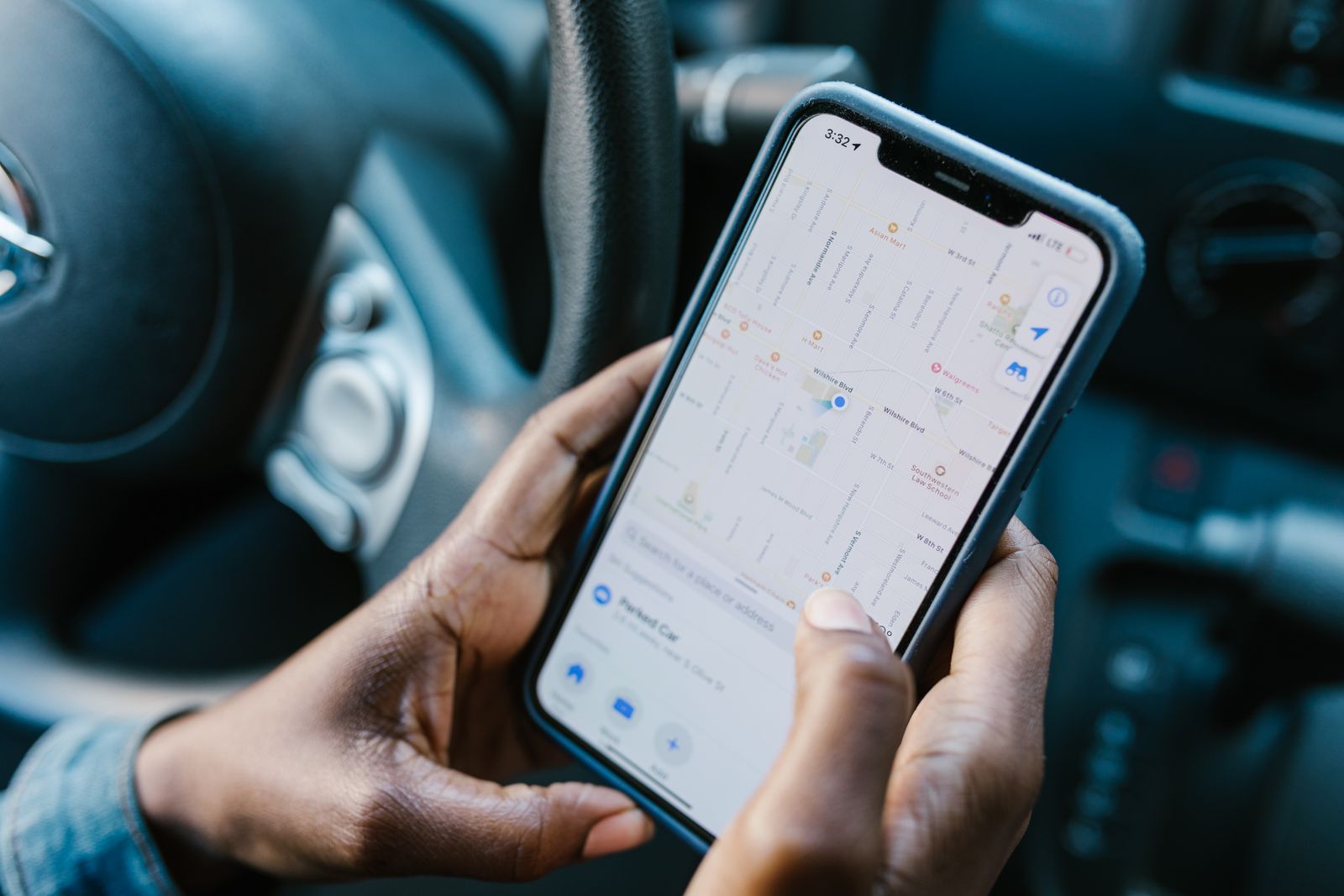 Photo by RDNE Stock project on Pexels
Which Apps Keep Your Coordinates and Which Strip Them
Whether your coordinates reach other people depends heavily on how you share the file. Many large social platforms strip EXIF—including the GPS Info IFD—when you upload, because they re-encode images on their servers. That re-encoding discards the original metadata as a side effect rather than as a privacy feature, which is an important distinction: the behavior is undocumented, inconsistent, and can change without notice. Instagram, for instance, generally removes EXIF on upload, a process we tested in our look at Instagram's EXIF handling.
The riskier paths are the direct ones. Emailing a photo as an attachment, sharing it through a cloud link, sending it through a service that preserves originals, or uploading it to a site that does not re-encode all leave the GPS Info IFD intact. Even on platforms that strip public copies, a downloadable original may still carry full coordinates. Because you cannot reliably know which path preserves location and which does not, the dependable approach is to remove the data yourself before the file leaves your control. If your goal is simply to send a clean image to a person, our guide on sending photos without sharing your location walks through the safest channels.
How to Stop Your Phone From Geotagging Photos
The cleanest fix is to prevent coordinates from being written in the first place, so there is nothing to remove later. On an iPhone, open Settings, go to Privacy & Security, then Location Services, find Camera, and set it to Never. On most Android phones, open the camera app's own settings and turn off the "Save location," "Location tags," or "Geotagging" option, which controls whether the camera attaches coordinates.
There is a real trade-off. Turning geotagging off means your new photos will no longer sort onto a map or populate location-based albums. Many people keep it on for personal archives and instead clean photos at the moment they share them. Either approach works, as long as you make the choice deliberately rather than leaving the default on and forgetting it exists.
How to Remove GPS Coordinates From Photos You Already Took
For the thousands of photos already sitting in your library with coordinates baked in, prevention is too late—you need removal. The most reliable method is a metadata cleaner that strips every EXIF tag, including the entire GPS Info IFD, and processes the file locally so a geotagged image of your home never travels to someone else's server. Metadata Cleaner does exactly this in the browser: you drop in a photo, it removes the location block along with every other tag, and you download a clean copy.
To remove GPS coordinates from a photo, start by making a copy so you keep an untouched original if you ever need the location. Open the copy in a local metadata cleaner, strip all EXIF tags with attention to the GPS sub-IFD fields, then save the cleaned version. Reopen that file in a viewer and confirm the GPS section is empty before sharing. Finally, switch off location access for your camera so future shots are clean from the start.
Built-in tools help but only partially. The iPhone share sheet has an Options toggle to exclude location when you send a photo, and Windows offers "Remove Properties and Personal Information" in a file's Properties dialog. These often clear GPS while leaving camera and timestamp tags behind, and the steps shift between app versions. For a complete, platform-by-platform walkthrough, see our guide on how to strip EXIF data from a photo. If you are clearing a whole library at once, the same principles scale to batch processing.
What Removing GPS Data Does Not Do
Honesty about limits matters here. Stripping the GPS Info IFD removes the coordinates stored in the photo's metadata, and that is the threat for the overwhelming majority of people. But it does not erase location information that lives outside the file. If you already uploaded the original somewhere, a cached copy with full coordinates may persist regardless of what you do to your local file. Cleaning metadata also does nothing about the visible content of the image: a recognizable storefront, a street sign, or a house number in the frame can still reveal where a photo was taken, and no metadata tool touches pixels.
There is also the matter of the platforms themselves. A service may log the IP address or account location of whoever uploads an image, entirely separate from EXIF. Removing GPS coordinates protects the file you hand to other people; it is not a cloak of invisibility.
The Bottom Line
GPS coordinates get into your photos through a quiet, automatic handoff: your phone's satellite receiver supplies a position, and the camera files it into a dedicated EXIF sub-directory—the GPS Info IFD—at the instant of capture, in degrees, minutes, and seconds against the WGS-84 datum. That block follows the file everywhere unless something removes it. You have two levers. Turn geotagging off to stop new coordinates from being written, and strip EXIF before sharing to clear the photos you already have. Do either deliberately and the invisible map inside your photo library stops being a liability. Try Metadata Cleaner free to remove location data from any photo in seconds, right in your browser.