TL;DR: Adobe Portfolio has no published policy stating that it strips EXIF, GPS, or camera metadata from uploaded images. Its official FAQ — last revised in 2025 — covers layouts, responsive design, custom domains, password-protected pages, and Behance syncing, and never mentions metadata handling at all. That silence matters more on Portfolio than on most platforms, because the surrounding Adobe ecosystem is built to preserve metadata: Lightroom writes EXIF and XMP into every export by default, Bridge's Publish panel pushes files straight from your catalog to Portfolio, and publishing a Portfolio project can automatically sync it to Behance, where we've also found no documented stripping. Treat every image you publish there as if its metadata survives: strip GPS coordinates and device identifiers yourself before upload with a tool like Metadata Cleaner, and deliberately keep the IPTC copyright fields that prove the work is yours.
Does Adobe Portfolio remove photo metadata?
There is no evidence that it does. We went looking for the kind of statement Instagram and Facebook publish — an explicit note that location data is removed from photos on ingest — and Adobe Portfolio simply doesn't have one. The Adobe Portfolio FAQ describes what the product is for: elegant layouts, live editing, custom domains, Google Analytics, Adobe Fonts, and syncing projects with Behance. Metadata, EXIF, GPS, and privacy of the image file itself are not mentioned once.
That puts Adobe Portfolio in the same category as Behance, Tumblr, and Flickr: platforms with no documented commitment to stripping anything. The distinction we keep drawing in this series matters here. A platform that documents stripping (Instagram, Facebook) gives you something to rely on and someone to blame. A platform that documents nothing gives you neither — its behavior can change with any deploy, silently, and no policy was violated.
And there's a structural reason to expect Portfolio to lean toward keeping metadata rather than discarding it. Portfolio isn't a social network compressing billions of casual snapshots; it's a professional showcase sold as part of Creative Cloud, sitting downstream of Lightroom and Bridge — applications whose entire metadata architecture (EXIF, IPTC, XMP) is designed to travel with the file. Aggressively deleting photographer metadata would cut against what the rest of the Adobe ecosystem promises its paying users.

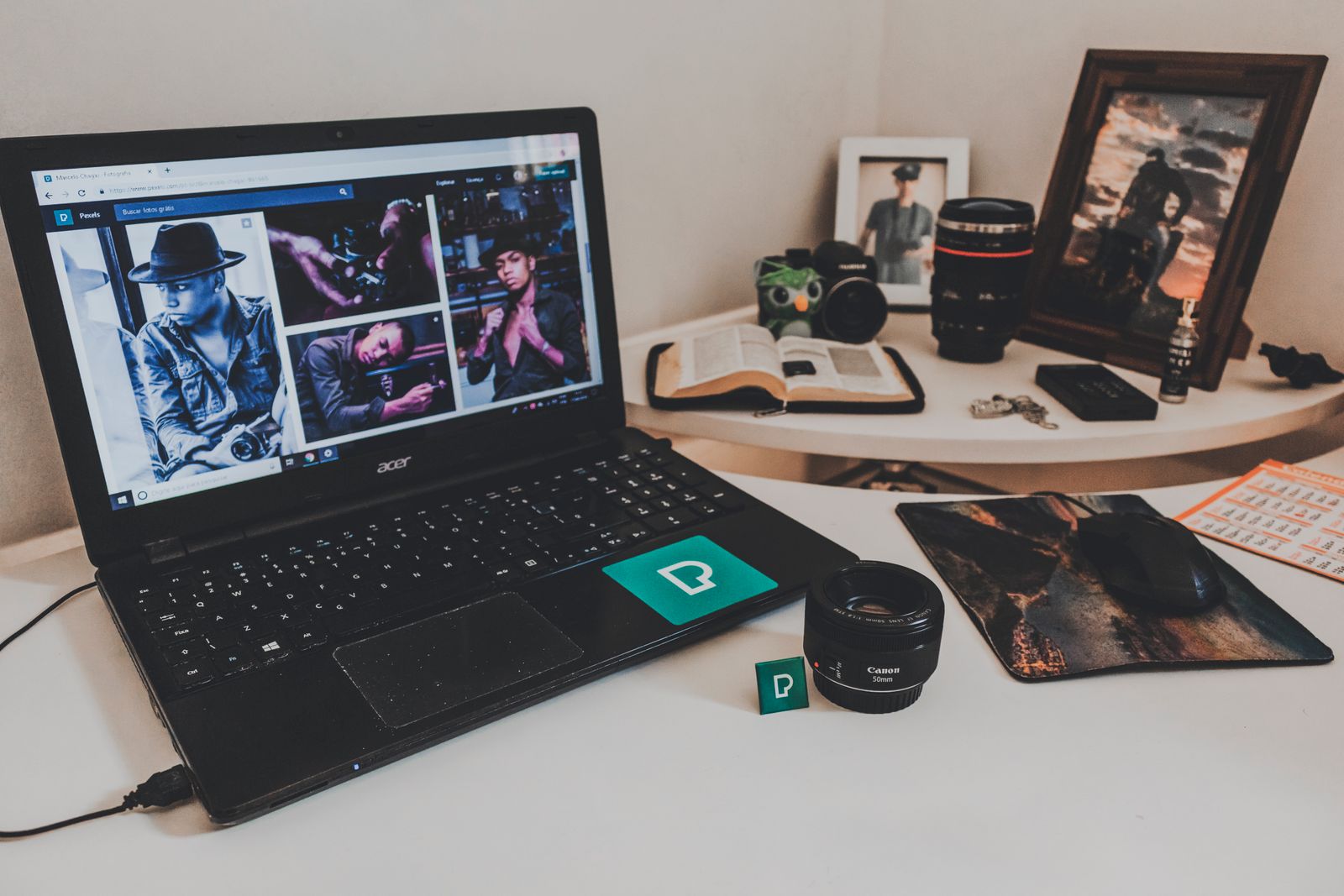
Photo by VAZHNIK on Pexels.
What Adobe's own documentation actually says
Since Portfolio's docs are quiet on metadata, the honest way to reason about it is to look at what Adobe does document about how files get there.
First, the upload paths. You can add images directly inside Portfolio's editor, and Adobe also documents a Publish panel in Bridge that uploads assets from your local catalog straight into Portfolio projects. Bridge is a metadata-first application — Adobe's own metadata documentation describes how EXIF, IPTC, GPS, and TIFF fields are synchronized with XMP so they persist across the Creative Cloud ecosystem. A file that leaves Bridge for Portfolio leaves with its metadata deliberately intact, because keeping metadata intact is the point of Bridge.
Second, the Behance sync. The FAQ is explicit: when you publish a project in Portfolio, it can automatically sync to your Behance profile, and if you don't have a Behance account, one is created for you when you start publishing. This is worth pausing on. An image you thought you were putting on one quiet personal site can surface on a second platform with millions of viewers — carrying whatever metadata it had. We covered Behance's own undocumented pipeline in our Behance post; the short version is that its help docs discuss resizing and CMYK-to-RGB conversion but never metadata removal. Two platforms, one file, zero documented stripping on either end.
Third, what image processing is documented anywhere in this pipeline is display optimization — resizing for responsive layouts and converting color spaces for screens. As we explained in Does Compressing a Photo Remove Its Metadata?, resizing and recompressing an image does not inherently remove its EXIF block. Metadata removal is a separate, deliberate engineering decision, and nothing Adobe publishes says Portfolio makes it.
What metadata is in your files before they reach Portfolio
The files photographers put on Portfolio are usually the worst-case files for metadata exposure, because they come straight out of a professional workflow.
A typical Lightroom export carries the full EXIF IFD: camera make and model, lens, serial numbers, exposure settings, and capture timestamps. If the photo came from a phone, or from a camera with GPS or a location-logging app, the GPS IFD holds latitude and longitude precise enough to identify a building — we walked through exactly how those coordinates get written in How GPS Coordinates Get Embedded in Photos. On top of that sits the XMP packet Adobe's tools maintain: edit history hints, creator tool strings, and IPTC fields for creator, contact, and copyright. Recent versions of Adobe software can also attach Content Credentials — the C2PA provenance manifests stored in JPEG APP11/JUMBF segments that we broke down in What Are C2PA Content Credentials — which Adobe develops through the Content Authenticity Initiative.
For a working photographer, some of this is asset and some of it is liability. The IPTC copyright and creator fields are assets — they're how a client, a publication, or a court connects the file to you, a point we covered in How Photographers Protect Their Copyright with Metadata. The GPS coordinates of your home studio, your camera body's serial number, and your full editing toolchain are liabilities. A portfolio site is a public, indexed, professionally-linked-to surface: it has your name on it by design, so any location data in the files connects your identity to specific places with no inference required.

Photo by cottonbro studio on Pexels.
How to check what your Portfolio site is actually serving
You don't have to take anyone's word for this — yours included. The test takes two minutes.
Open your published Portfolio site in a browser, open the image in a new tab so you're looking at the file Adobe's CDN actually serves, and save it. Then inspect that file's metadata: on a Mac, exiftool in Terminal gives the complete picture; Preview's Inspector shows a useful subset, including a GPS tab if coordinates are present. Compare what you find against the file you uploaded.
Three caveats before you generalize from one test. Portfolio serves different renditions at different display sizes, so check the largest one — a stripped thumbnail proves nothing about the full-size file. Behavior observed today isn't a policy; an undocumented pipeline can change without notice, which is the core argument for cleaning files yourself rather than re-testing after every Adobe update. And if you synced the project to Behance, run the same test on the Behance copy, because it's a separate pipeline serving a separate file.
The professional's split: strip location, keep copyright
For most posts in this series the advice is simple: strip everything. Portfolio, like Behance, deserves the more surgical version, because a portfolio is precisely where wholesale stripping can hurt you.
If you remove every trace of metadata, you also remove the IPTC creator and copyright fields that assert authorship — and on a site whose entire purpose is proving what you made, a blank metadata block is a small self-inflicted wound. The workflow we recommend is the split: strip the EXIF block, GPS IFD, embedded thumbnail, and device identifiers with Metadata Cleaner, then re-embed your name and copyright notice via Lightroom's metadata panel or Bridge's File Info before upload. Everything runs locally in your browser during the cleaning step, so the original never leaves your machine. (This works for images and video; for the broader question of what different file types carry, see IPTC vs EXIF vs XMP.)
Honesty about limits, as always: stripping metadata removes what's embedded in the file. It does not remove Content Credentials recorded in Adobe's cloud-side provenance database, it does not prevent Adobe from logging upload IP addresses and account activity under its privacy policy, and it does nothing about visual identification — a recognizable storefront in the photo identifies the location no matter how clean the EXIF is. Metadata hygiene closes the invisible channel; the visible one is your editorial call.
What we'd do before publishing a Portfolio project
Export from Lightroom or Bridge to a local folder. Clean the file. Re-embed copyright. Upload the cleaned copy. Decide the Behance sync checkbox deliberately rather than by default, because it doubles the number of platforms serving your file. And re-run the CDN check once in a while, since undocumented pipelines earn exactly as much ongoing trust as they document — none.
Your portfolio should show your work, your name, and nothing else. Try Metadata Cleaner free — it runs entirely in your browser, and your files never leave your machine.